


Our Ask Oracle in Action blog covered the basics: asking a business question, navigating without menus, and combining Ask Oracle with Narrative Insights. This time we're going further, with more advanced examples, a look at how you can teach Ask Oracle your own business through Skills, Canvases, and a look at SuiteAgents and how external AI assistants such as Claude connect to NetSuite.
Power Up Your Dashboard with AI
Describe the business information you want to monitor, and Ask Oracle can create a custom portlet for the dashboard around it. Metrics, trends, tables, or visualisations, whatever's most relevant to a given role, all through natural language rather than manual setup, and refined further as needs change.
Adding one starts from the dashboard: click Personalize, and an AI Portlet option appears in the list, NetSuite currently allows up to ten per dashboard. Once it's placed, describing the information to monitor is enough for Ask Oracle to build a tailored portlet around that request, for example, "show me this month's overdue invoices by customer, with amount and days overdue."
Portlets also stay current on their own: refresh the dashboard, or log back in the next day, and the same portlet updates to reflect the latest data, a rolling view rather than a one-off snapshot.
A few practical benefits worth calling out:
-
it creates dashboard views tailored to exactly what someone wants to see,
-
turns a plain-language request into a focused portlet,
-
makes personalising a dashboard faster and more flexible than building everything manually
-
helps people monitor what matters without needing to know how to construct a saved search or report first.
One thing worth knowing: AI portlets use AI units, so it's worth being a little deliberate about which ones get built permanently versus a one-off question asked directly in Ask Oracle.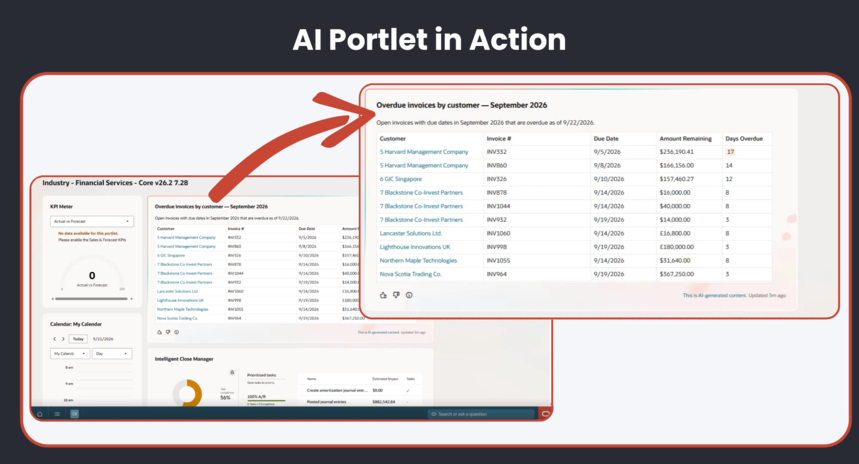
Canvases: A Workspace for Deeper Analysis
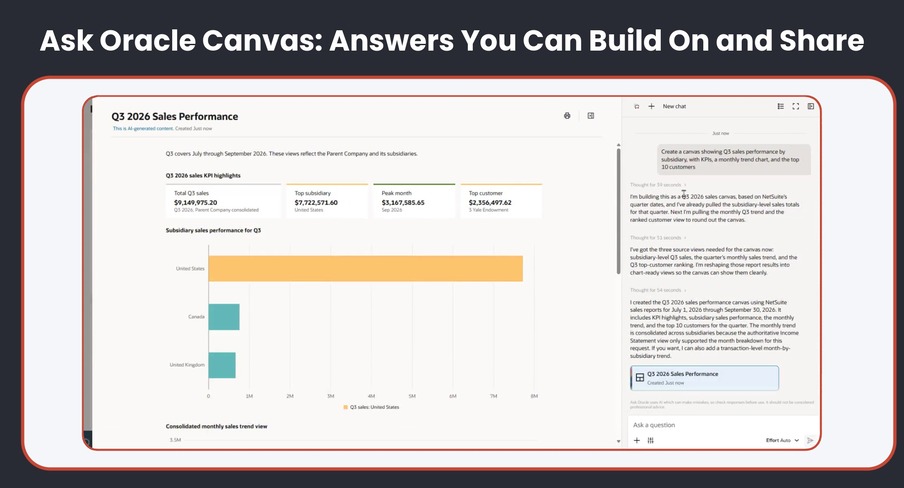
Some questions need more than a single answer. Canvases are Ask Oracle's workspace for exactly that kind of work, turning a plain-language request into a visual, structured analysis. Built from one request, a canvas can include a narrative summary, KPI cards, tables and charts, and it can be refined from there with follow-up questions.
Creating one starts the same way as any Ask Oracle request: open Ask Oracle from the navigation bar and describe what’s needed, for example, "Create a canvas showing Q3 sales performance by subsidiary, with KPIs, a monthly trend chart, and the top 10 customers." Ask Oracle returns the canvas in the chat and opens it in a side drawer, ready to explore.
The same principles that make any Ask Oracle request effective apply here: start with a clear business question, and include the details that matter, the period, the subsidiaries, the customers or vendors involved, and the type of output wanted. What sets a canvas apart is what happens next. A follow-up prompt like "add an overdue A/R section" or "break revenue down by customer category" doesn’t start a new canvas, it adds to the existing one. Each follow-up creates a new snapshot version, so the analysis builds additively and stays traceable rather than being overwritten.
Canvases also present the analysis in a genuinely polished, visual way, KPI cards, charts and tables laid out clearly rather than as plain text, and that output can be exported as a PDF and shared with others. A canvas is easy to come back to as well: it's saved in chat history, can be renamed to make it easier to find later, and reopened at any point to keep refining with further questions.
This makes canvases a strong fit for work that unfolds over several questions rather than one: executive performance reviews, sales analysis, receivables analysis, financial period summaries, exception tracking, and multi-step investigations generally. There's no separate setup required beyond having access to Ask Oracle and the underlying NetSuite data, though what appears in a canvas still depends on existing role and permissions. And as with any AI-generated output, a canvas is decision support, not a final answer, worth validating against the underlying records or reports before being relied on, particularly before exporting and sharing it more widely.
Building a Skill: The Customer Account Snapshot Example
Skills are reusable instructions that teach Ask Oracle how to handle a specific, repeatable task the same way every time. Some come built in, generated by NetSuite itself, and are generally view-only, while custom skills created in-account or installed through a SuiteApp can usually be opened, copied, or edited depending on permissions. Existing skills, and their name, description, and available actions, are visible from Setup, Company, AI, Skills, or by searching “Skills” directly.
To create a skill, click Create Skill (or search "New Skill"), give it a clear name, and add a description that tells Ask Oracle when to use it. For an example of the sorts of skills you can build, we built a "Customer Account Snapshot" skill for when someone asks for an overview of a customer account. It pulls together recent revenue, open invoices, recent orders and any open support cases.
After giving your skill a name and a description, the last crucial part to complete is its instructions. The instructions are where the real shaping happens. A good one covers three things:
-
What to include: the specific information the skill should pull together, such as the key fields, time periods or records that matter for the task
-
How to present it: the format and length you want, for example a short heading followed by a handful of key facts, stated factually rather than interpreted
-
What not to do: clear boundaries, such as not taking actions, creating records or guessing at causes without evidence, and a reminder to state the as-of date and any assumptions used
It’s also worth sharing a new skill with just yourself to begin with, so it can be tested before rolling out to the wider team. Once saved, NetSuite creates the skill record and stores the underlying file as Markdown in the File Cabinet, under Skills, and from there any user with the right access can invoke it in Ask Oracle simply by asking a relevant question.
Good skills tend to stay narrowly focused, a customer renewal review, a month-end close readiness check, an order fulfilment exceptions report, rather than one skill trying to do everything.
SuiteAgents: Getting Work Done in NetSuite
Skills shape how Ask Oracle answers. SuiteAgents go a step further. They're designed to find and analyse information and complete work as part of a workflow, and to be started from Ask Oracle by typing @, or used from specific NetSuite pages. Whether a partner or your own team builds them, they're designed to sit on the NetSuite platform. Which ones you see depends on your account setup, enabled features, installed SuiteApps and permissions.
A useful example is a credit approval SuiteAgent built to review sales orders that exceed a customer's credit limit. A controller could ask Ask Oracle for the orders over the limit, and the SuiteAgent would retrieve the relevant NetSuite data, apply the business rules set for it, and return a recommendation such as approve, reject or escalate, together with supporting reasons. Whether future policy changes need only a data or knowledge update, or a code change and redeployment, depends on how it was built.
SuiteAgents are still new and the documentation is developing, so it's worth checking with your implementation partner for the latest information.
Connecting an AI client to NetSuite
NetSuite’s AI Connector Service lets an external AI assistant work directly with your NetSuite data. It’s built on the Model Context Protocol (MCP), so it isn’t locked to a single vendor. Claude and ChatGPT are both named as supported examples, and NetSuite calls these tools “AI clients”.
Setting it up has a few parts:
-
An AI client plan that supports the connector: Claude Pro or higher, or ChatGPT Plus or higher.
-
The required features enabled in NetSuite, and a role set up for the AI Connector Service. The Administrator role can’t be used.
-
Your acknowledgement that data will be shared with the third-party AI provider, which is requested when you connect.
Your administrator or implementation partner can help with the setup, and NetSuite’s Help Center has a guide, “Connect to the NetSuite AI Connector Service”. The service itself isn’t a paid feature and doesn’t use NetSuite AI units, although your AI provider’s own plan and terms apply.
Once connected, your team can work with NetSuite data from the AI client they already use. For example, rather than logging into NetSuite to update a customer record by hand, you could ask Claude to make the change, as long as the role it’s connected through is allowed to edit customer records.
None of this bypasses your existing controls. What the AI client can see and do is limited by the permissions of the role it connects through. Data in NetSuite is handled under Oracle’s terms, while data sent to your AI provider is handled under that provider’s terms, so it’s worth reviewing them.
Ask Oracle + MCP: Complementary, Not Competing
With SuiteAgents and the AI Connector Service now in the picture, it's worth being clear on how Ask Oracle and MCP relate to each other, since it's easy to assume they're competing rather than complementary.
Ask Oracle is NetSuite's built-in, everyday assistant. It's ready to use without any development work: just ask it a question, request an analysis or ask for guidance from wherever you are in NetSuite.
MCP, through the AI Connector Service, is a different layer. It's how external AI clients, such as Claude or ChatGPT, connect to NetSuite to work with your data. That makes it the route to take when a need falls outside what Ask Oracle does, or when your team would rather work in a different AI assistant.
Neither replaces the other. Ask Oracle works inside NetSuite, so it suits everyday questions about your data. An external AI client suits work that spans NetSuite and other tools. There's also a practical difference: Ask Oracle requests use AI units, while the AI Connector Service doesn't, because those requests run with the AI provider you've connected.
Both work within NetSuite's roles and permissions. An AI client connected through the AI Connector Service can only see and do what the role it connects through allows, so extending access this way doesn't go beyond what you've already scoped and approved.
Understanding AI Units
NetSuite measures AI use through AI units. They're included with eligible NetSuite user licences, shared across your whole organisation, and provisioned upfront for the term of your NetSuite Cloud Service, so you can use them at your own pace. Units are used whenever an AI feature generates content, delivers an insight, automates a task or recommends an action.
How many a request uses depends on how complex it is. NetSuite's own estimates show the range for Ask Oracle: a simple how-to question uses around 10 units, an analysis question about a specific invoice balance 10 to 50, and a research question such as the top five customers by overdue A/R balance 50 to 200. Narrative Insights on a customer record is estimated at 5 to 200 units, and Text Enhance at 5 to 10. These are estimates only, and actual use will vary with the request.
You can see the full list of estimates in NetSuite’s Help Center under “NetSuite AI Units and NetSuite Features”.
Administrators can see AI unit usage on the Billing Information page (Setup, Company, View Billing Information), and the remaining balance through NetSuite’s centralised usage reporting.
Two things sit outside the model. The AI Connector Service doesn't use AI units, because those requests run outside NetSuite with the AI provider you've connected, such as Claude. Add-on NetSuite modules with AI features aren't included either.
The practical takeaway is to start small and build up. Begin with the AI features that save your team the most time, then expand as you see how usage builds. That's also why it's worth being deliberate about which AI portlets you build permanently, since each one uses units.
Wrapping Up: What to Remember
A few things to keep in mind as you start putting these features to work:
-
Refine as you go. You can always ask further questions and refine your results, so start with the question you have rather than the perfect prompt.
-
Use chat history. Pick up a previous conversation rather than starting over.
-
Be specific with setup. Skills, Canvases and SuiteAgents all reward clear, specific instructions. The clearer the setup, the more useful the output.
-
Governance stays intact. Any new AI connection works within your existing roles and permissions, so access stays limited to what each role allows.
-
Start small and build up. Begin with the AI features that save your team the most time, then expand as you see how usage builds. It's also worth being deliberate about which AI portlets you build permanently, since each one uses AI units.
Watch the Walkthrough
Prefer to watch? This on-demand webinar shows AI portlets, Canvases and Skills in a live NetSuite environment, then covers SuiteAgents and how external AI clients connect to NetSuite. The chapters in the video description let you jump to the section you want.
FAQs
What is an AI portlet, and how is it different from asking Ask Oracle directly?
An AI portlet lets you describe the information you want to monitor, such as metrics, trends or tables, and Ask Oracle builds a custom portlet for your dashboard around that request. Asking Ask Oracle directly gives you a one-off answer in a chat, while a portlet keeps that view on your dashboard and updates when you refresh or log back in. You add one from Personalize on the dashboard, can add up to ten, and can refine it as your needs change. AI portlets use AI units, so it’s worth being selective about which ones you build permanently.
What is a Canvas, and how is it different from a normal Ask Oracle answer?
A Canvas is a workspace for analysis that needs more than a single chat answer. Built from one request, it can include a narrative summary, KPI cards, tables and charts. Follow-up prompts add to the same canvas as a new version rather than starting over, and you can export it as a PDF. Ask for a canvas explicitly, for example “Create a canvas showing Q3 sales performance by subsidiary”. As with any AI-generated output, check it against your underlying records or reports before relying on it, especially before sharing it.
What is a Skill in Ask Oracle, and how do I create one?
A Skill is a set of reusable instructions that teaches Ask Oracle how to handle a specific, repeatable task the same way every time, such as summarising a customer account. NetSuite provides some skills, which are generally view-only. You can create your own from Setup, Company, AI, Skills, with a name, a description that tells Ask Oracle when to use it, and the instructions. It’s worth sharing a new skill with just yourself first, so you can test it before rolling it out.
What is a SuiteAgent, and how is it different from a Skill?
A Skill shapes how Ask Oracle answers a specific type of question. A SuiteAgent goes further. It's designed to find and analyse information and complete work as part of a workflow, for example reviewing orders over a credit limit and recommending approve, reject or escalate, with reasons.
Can I use SuiteAgents from Ask Oracle?
SuiteAgents are designed to be started from Ask Oracle by typing @, and some are available from specific NetSuite pages. Which ones you see depends on your account setup, enabled features, installed SuiteApps and permissions. They're still new, so check with your implementation partner for the latest information on how these will work.
What do I need to connect Claude or ChatGPT to NetSuite?
You need a plan that supports the NetSuite connector (Claude Pro or higher, or ChatGPT Plus or higher), the required features enabled in NetSuite, and a role set up for the AI Connector Service. The Administrator role can't be used. You'll also be asked to acknowledge that data will be shared with your AI provider.
What is the AI Connector Service?
The AI Connector Service is built on the Model Context Protocol (MCP) and lets external AI assistants work directly with NetSuite data. It isn’t limited to one AI vendor, and Claude and ChatGPT are both named as supported examples.
How do Ask Oracle and MCP relate to each other?
They're complementary rather than competing. Ask Oracle is NetSuite's built-in, everyday assistant and works without any development. MCP, through the AI Connector Service, is how external AI clients such as Claude or ChatGPT connect to NetSuite. There's also a practical difference: Ask Oracle requests use AI units, while the AI Connector Service doesn't, because those requests run with the AI provider you've connected. Both work within NetSuite's roles and permissions.
Does connecting an external AI assistant bypass existing security controls?
No. An AI client connected through the AI Connector Service can only see and do what the NetSuite role it connects through allows. Data sent to your AI provider is handled under that provider's own terms, so it's worth reviewing them.
How do NetSuite AI units work?
AI units measure how much AI your organisation uses in NetSuite. They’re included at no additional cost with eligible user licences, shared across the business, and used whenever an AI feature generates content, insights or recommendations. How many a request uses depends on its complexity: NetSuite’s estimates are around 10 units for a simple Ask Oracle how-to question and 50 to 200 for a research question. Administrators can monitor usage, more units can be purchased, and unused units expire at the end of the contract term. The AI Connector Service doesn’t use AI units.
NetSuite Next features represent Oracle's current product direction and roadmap. Feature availability and rollout timing may vary. Contact Project Salsa for the most current information on what is available in your edition.